1. Choose what to show
Select Share my screen, then allow a screen, window or browser tab in the browser’s picker. Your sharing room opens with the selected view ready.
Skip the download and get straight to showing. ScreenSharing lets you share a screen, window or browser tab with up to three viewers, right from your desktop browser.
Use a supported desktop browser to start sharing. Chrome or Edge is a practical starting point.
An installed app can make sense when you need device-specific features. For a quick desktop walkthrough or review, a browser app lets you start without asking everyone to install software.
Swipe the table to compare both options →
| What matters | Installed app | ScreenSharing in your browser |
|---|---|---|
| Getting started | Download and install the software for your device. | Open this website in a supported desktop browser and choose what to share. |
| Joining a session | Some apps require an installation or account; others offer browser joining. | Viewers open your invitation link in a compatible browser. No install or account. |
| Devices | Device support depends on the app and operating system. | Share from a supported desktop browser. Mobile viewing depends on browser support. |
| Audio and drawing | Features and plan limits vary by app. | Shared drawing tools and microphone commentary; source audio when your browser provides it. |
| Room size | Participant limits depend on the app and plan. | One presenter and up to 3 viewers, free. |
| Specialist features | Look for an app that explicitly supports mobile broadcasting, recording or remote control if you need them. | Designed for live screen sharing. No built-in recording or remote control. |
Installed apps differ; check the features and requirements of the app you are considering.
Select Share my screen, then allow a screen, window or browser tab in the browser’s picker. Your sharing room opens with the selected view ready.
Copy the invitation link from your room and send it to up to three people. They open it in their browser, choose a display name and join.
Use the pen, highlighter or rectangle to point things out. You decide whether viewers can draw. Stop sharing or end the session when you finish.
Walk through a project, review a design or explain a process to a small group. Everyone follows the same view, with marks to make the details clear.
Use shared annotations without changing the original document.
Share source audio when supported, or turn on your microphone to explain.
Show one tab, one application window or your entire screen.
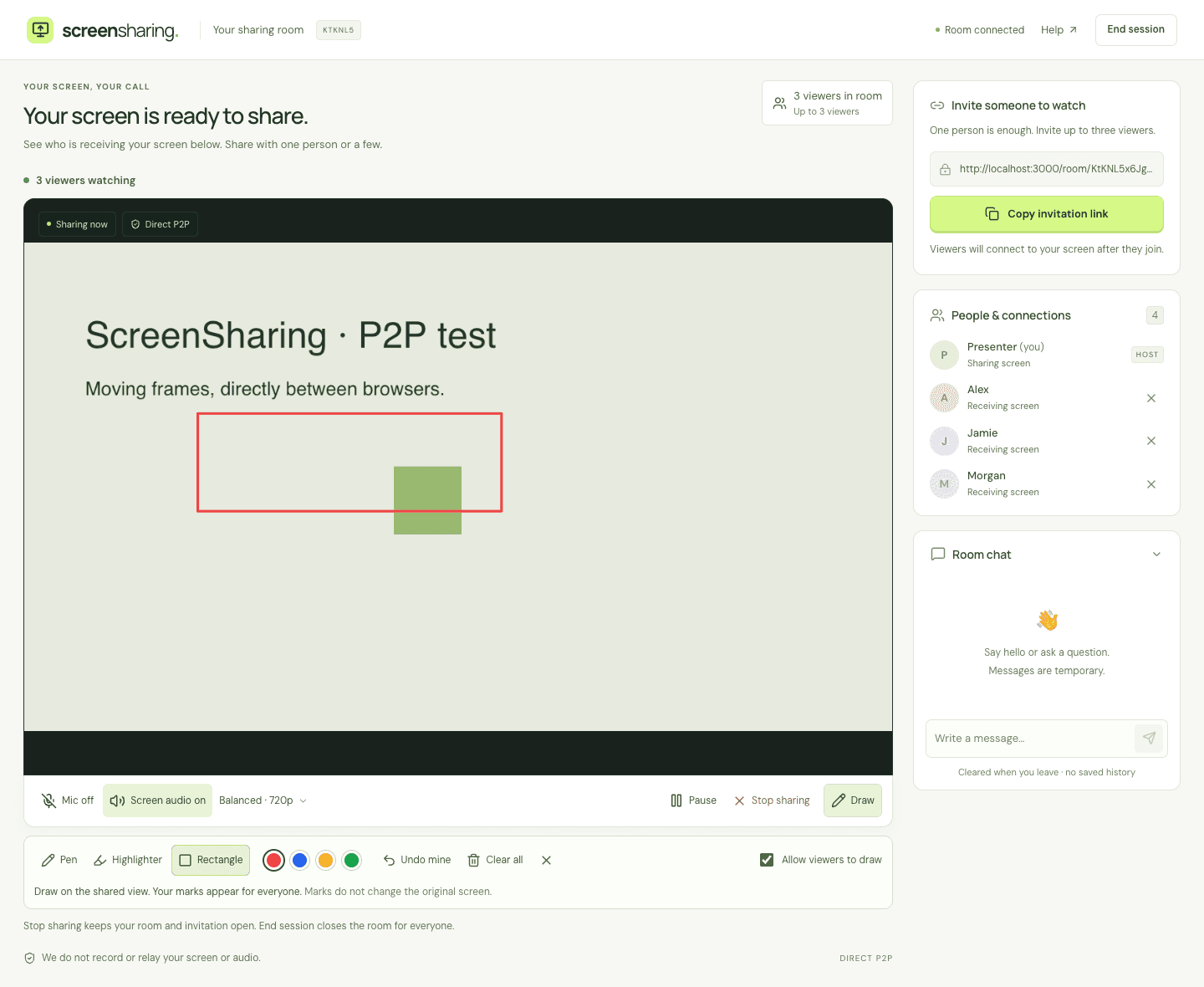
Share from a desktop browser with screen-capture support. Your browser asks you to choose and allow the source each time. On macOS, you may also need to allow screen recording for your browser in System Settings.
Viewers need a WebRTC-capable browser. Mobile viewing layouts are available; physical phone compatibility is still being verified. ScreenSharing does not broadcast a phone’s screen.
Screen and audio use direct browser connections. Some firewalls or network configurations can prevent a connection. Keep the sharing tab open, and try another network if a viewer cannot receive the screen. Visit screen sharing help for troubleshooting.
To use ScreenSharing, no. Open this website in a supported desktop browser and select Share my screen. Viewers join through your invitation link, without downloading software or creating an account.
Yes. ScreenSharing is free for one presenter and up to three viewers, including the shared drawing tools. No signup is required.
ScreenSharing is designed for sharing from a desktop browser. Viewers can open invitations in a WebRTC-capable mobile browser, but physical iPhone and Android compatibility is still being verified. If broadcasting your phone screen is essential, choose a dedicated app that supports your device.
Yes, when your browser supplies an audio track for the selected source. A browser tab with “Share tab audio” is a practical starting point. You can also enable your microphone for commentary. See the screen sharing audio guide.
No. Viewers see your shared screen and can draw on an overlay when you allow it. Annotations do not edit your files or give anyone control of your device. Explore the shared drawing tools.
Screen and audio travel directly between browsers using WebRTC. ScreenSharing does not record them. The room service handles invitations, connection messages and temporary chat. Share invitations only with intended viewers, and read our privacy details.
Open your browser. Choose your screen. Send one link.